Reporting
Once setup is complete all reports are available. Depending on the assigned role (Accountant or Managing Director) the tiles appear at different positions in the role centre.
Role Centre and Navigation
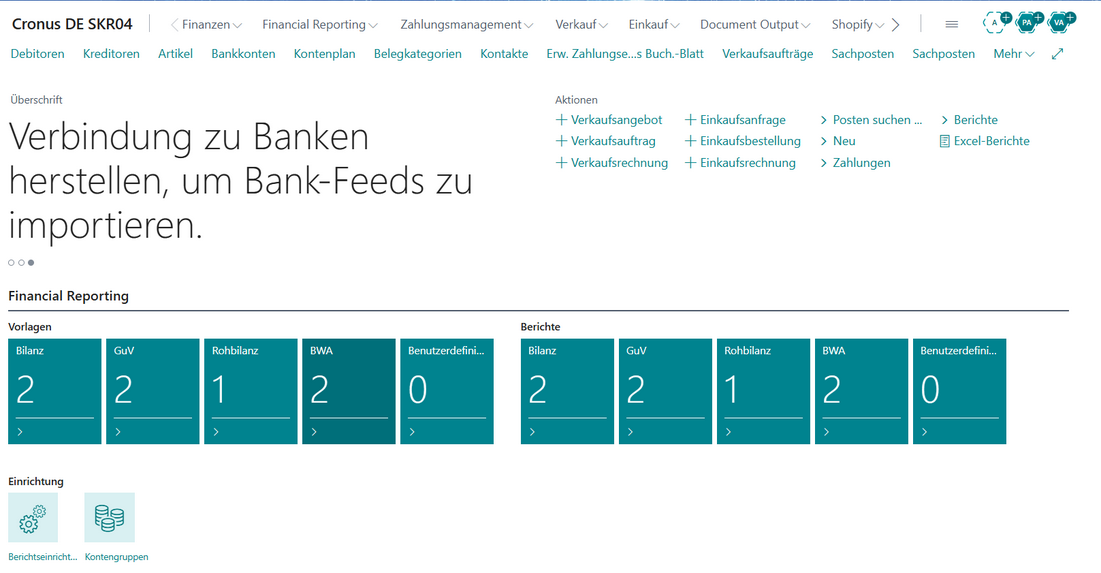
In the role centre you will find the tiles for Balance Sheet, P&L, Trial Balance and BWA under "Financial Reporting". With the "Managing Director" role they appear at the top; with "Accountant" they appear further down.
Tipp
If the Financial Reporting tiles are too far down in the Accountant role: click "Personalise" at the top right and drag the tiles to the desired position. This can be done per user.
Creating a Balance Sheet
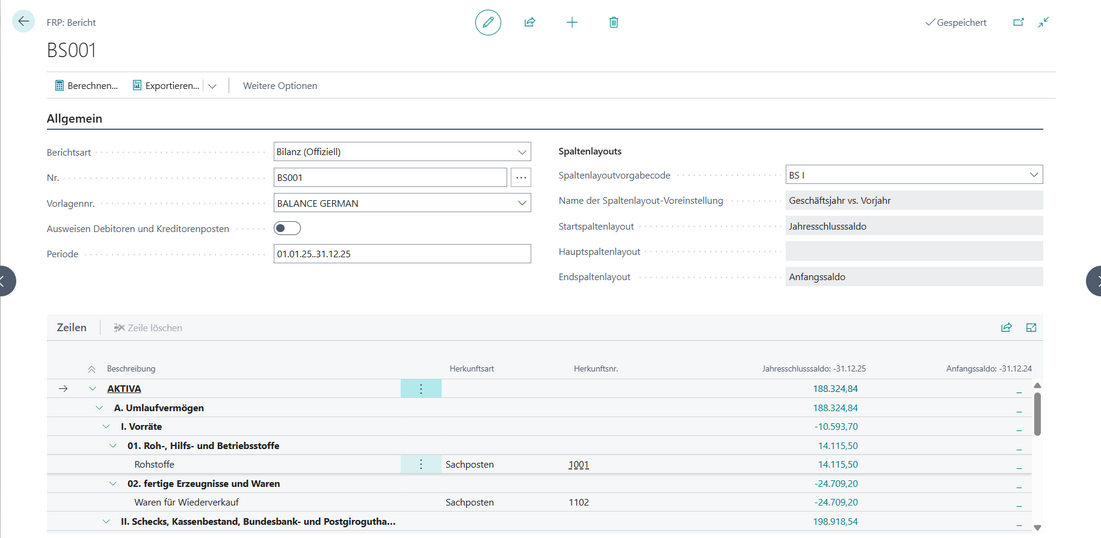
Click the "Balance Sheet" tile and open a report (e.g. BS001).
Select report type (Balance Sheet Official), template (e.g. BALANCE GERMAN) and period.
Click "Calculate…". The system shows a progress dialog and calculates all positions.
Review the calculated values in the line view. Positions without postings appear empty or as 0.
Creating a P&L Report
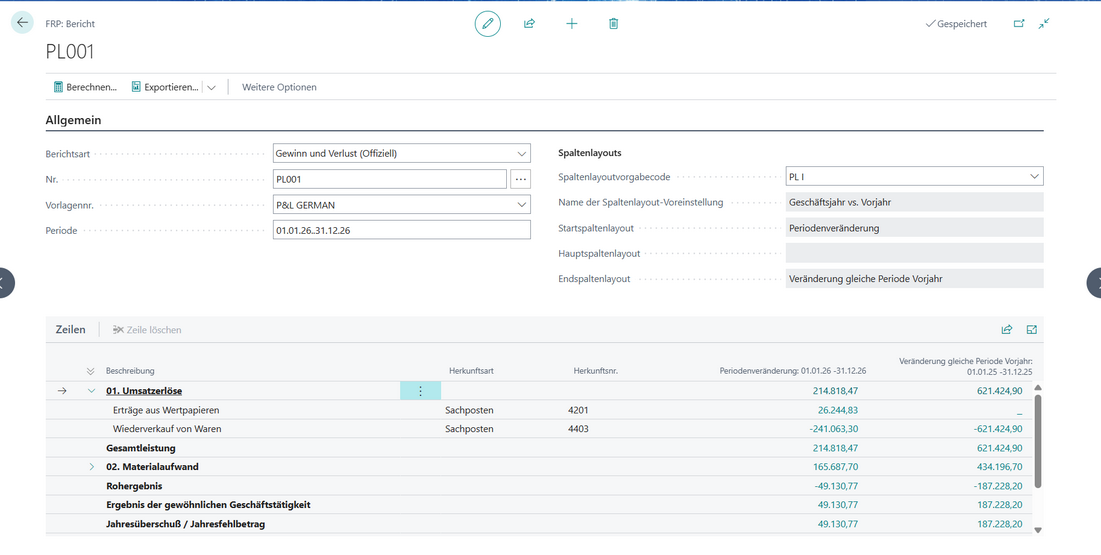
The process is identical to the balance sheet. Open a report of type "Income Statement (Official)" (e.g. PL001) with the template P&L GERMAN.
Configuring Column Layouts
Each report can be configured with different column layouts (column types). The column layout determines which values are displayed side by side – e.g. annual balance, monthly balance or period-over-period change.
Available column types (selection):
Balance at fiscal year start (closing) – year-end closing balance
Balance at month start (closing) – month-end closing balance
Balance one year ago – prior year value
Balance for one month – individual month
Change vs. same period prior year – period comparison (absolute)
Period change – change vs. prior month

To create or change a column layout:
In the report, go to "More Options" → "FRP Column Defaults" (or via global search).
Set the desired type for each column (start column, end column layout, main column layout).
Save and recalculate the report.
Notiz
The "Current Year vs. Prior Year" column layout is the appropriate standard for most users. For monthly reports select "Month vs. same month prior year". Column layouts can be set individually per report.
Trial Balance (Sum and Balance List)
The Trial Balance shows all accounts with their period movement and balance values at individual account level – without consolidation into balance sheet positions. It is used for review and reconciliation.

How to use:
Click the "Trial Balance" tile in the role centre.
Select the period and click "Calculate".
Export the trial balance as Excel if needed for further processing.
Tipp
The trial balance is the ideal tool for reconciling with the previous accounting software. Compare balances at account level before signing off the final balance sheet or P&L.
Exporting Reports
Excel export: "Export…" → Excel format. Structured table ready for further processing.
PDF export: Save as PDF and share.
Notiz
After changes to account group assignments the report must be recalculated via "Calculate" before the export contains the updated values.
Customising Report Templates
Add or remove lines – e.g. additional subtotal rows
Change account group for a line – link to a different report position
Configure column layouts – e.g. year-end closing vs. period change
Create custom templates – copy an existing template as a starting point
Notiz
Always create a copy of the original template as a backup before making changes.