Maintaining the Chart of Accounts → Account Groups
Account groups are the central control element: they determine in which line of a report (Balance Sheet or P&L) a G/L account appears. Assignments can be adjusted at any time – for example when new accounts are created or the report structure changes.
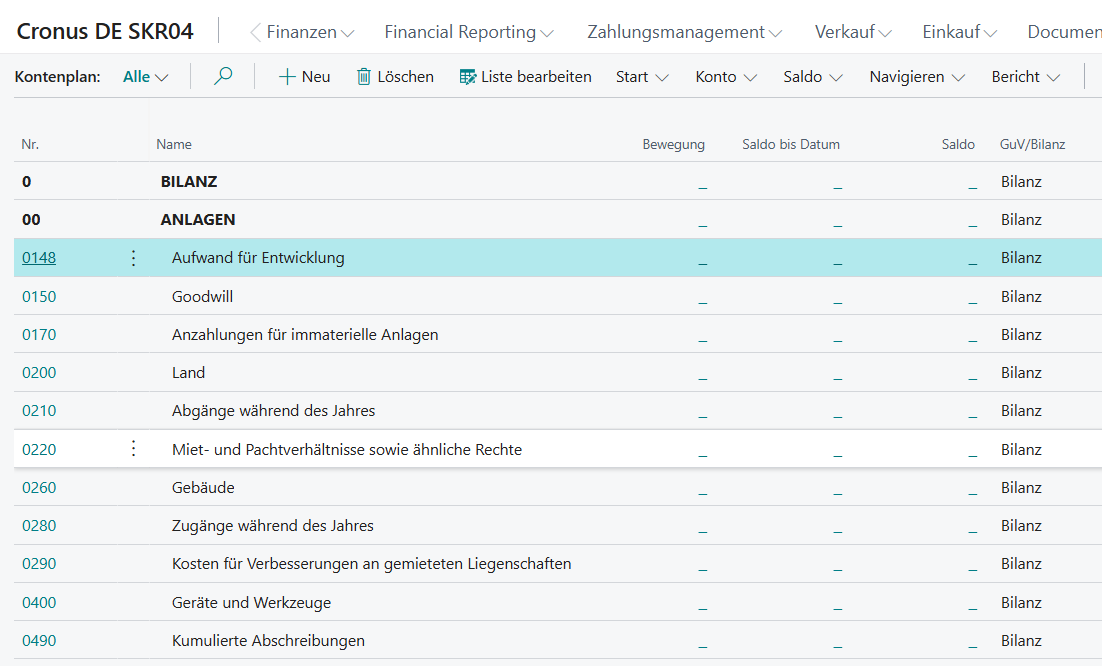
Opening the Chart of Accounts
Navigate via the "Chart of Accounts" menu in the role centre or via the global search. The chart of accounts shows all G/L accounts with their current balances.
Opening a G/L Account and Assigning an Account Group
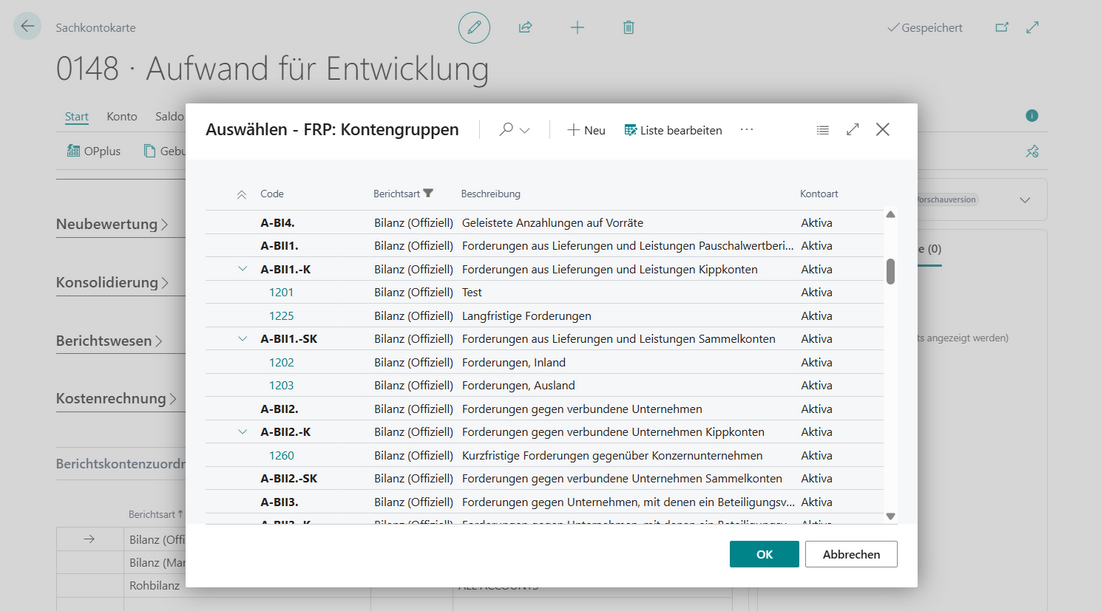
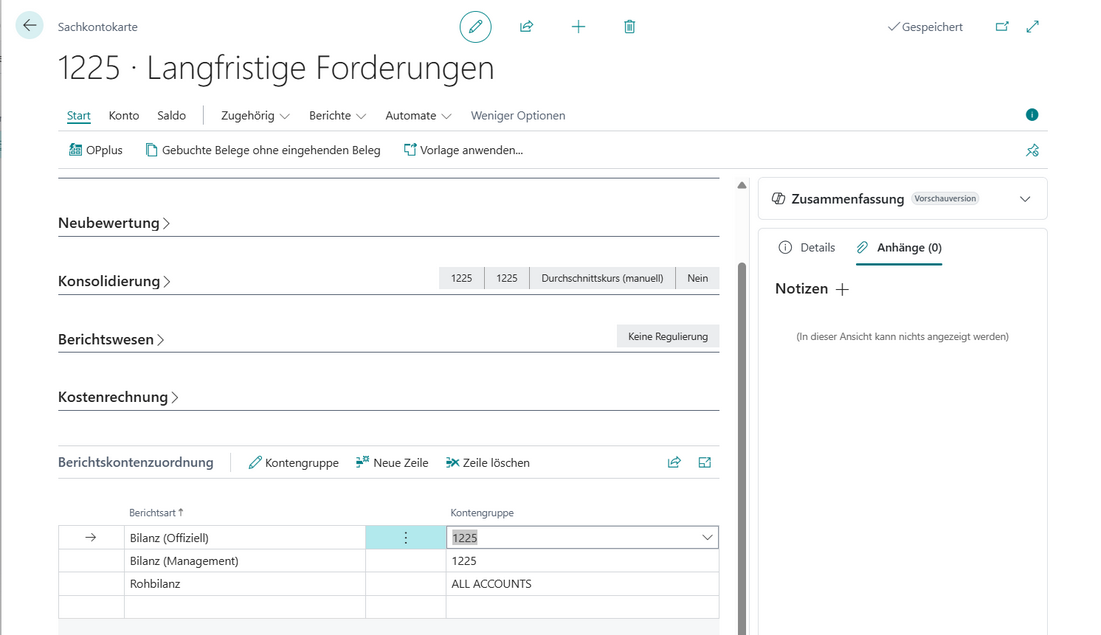
Open a G/L account by double-clicking. In the lower part of the G/L account card you will find the "Financial Report Account Assignment" section. Here you can see which account groups the account is currently assigned to – separated by report type (Balance Sheet Official, Balance Sheet Management, Trial Balance).

To assign or change an account group:
Click the "Account Group" field in the row for the desired report type (e.g. "Balance Sheet (Official)").
The selection dialog "FRP: Account Groups" opens.
Select the appropriate account group and confirm with OK.
Notiz
Account group codes follow a hierarchy (e.g. A-BII1-K → A-BII1-SK). Suffix K = flip accounts, suffix SK = collective accounts.
Account Group in Detail
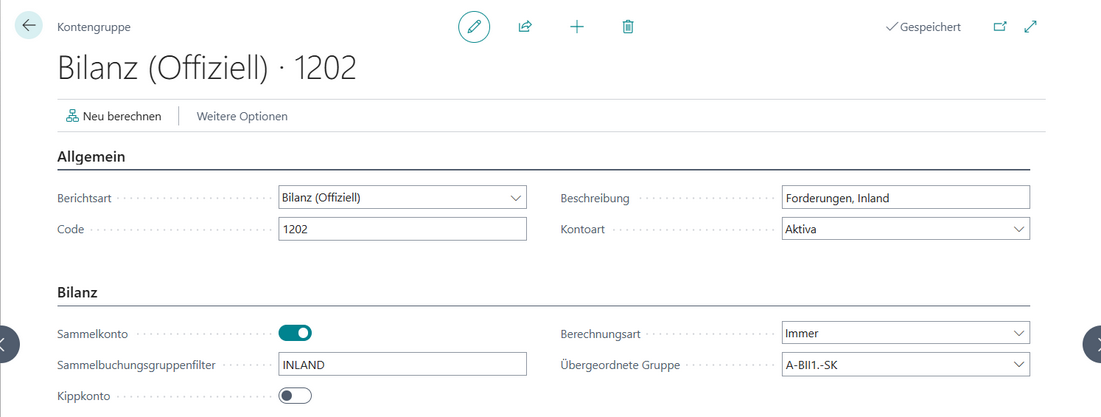
Open an account group via the global search "FRP: Account Groups". The detail page shows:
Report type and code – e.g. Balance Sheet (Official), code 1202
Description – e.g. "Trade receivables, domestic"
Account type – Asset or Liability
Collective account toggle and collective posting group filter (e.g. DOMESTIC or FOREIGN|EU)
Parent group – defines the hierarchy in the report
Account Groups in the Report Template
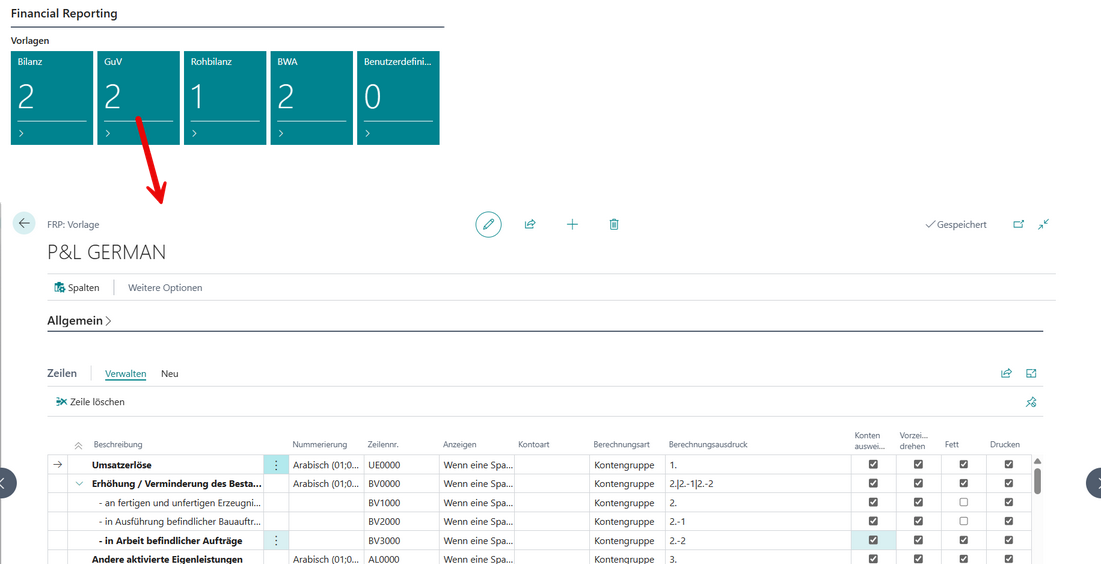
Via the report templates (e.g. P&L GERMAN) you can see the complete report structure with all account group references. Here you can add or remove rows, change account groups and configure subtotal lines.
Notiz
Always create a copy of the original template as a backup before making changes.
Flip Accounts
A flip account is a G/L account that should appear on either the asset or liability side of the balance sheet depending on its balance. Typical example: long-term receivables from affiliates – asset when positive, liability when negative.
How to set up a flip account:
Open the G/L account card of the relevant account (e.g. 1225 "Long-term receivables").
Scroll to the "Financial Report Account Assignment" section.
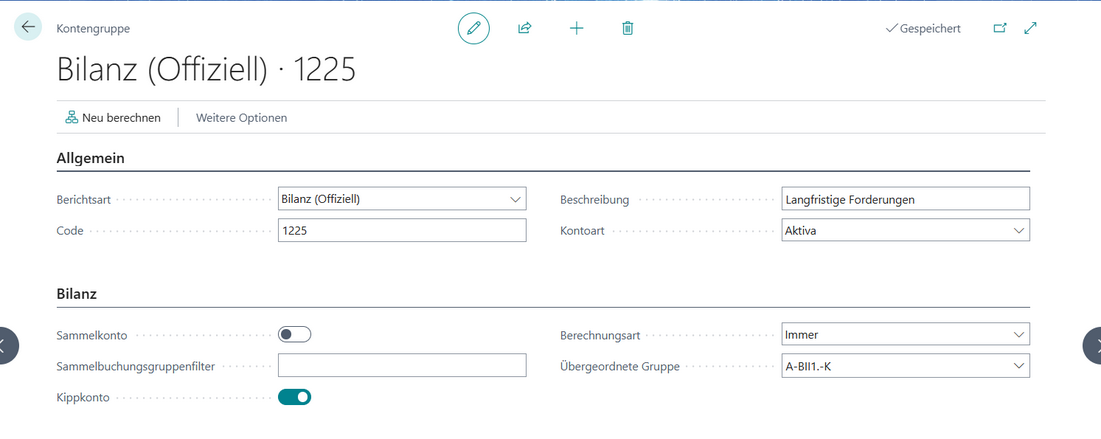
Create a new account group 1225. Enable the "Flip account" toggle and assign it the parent group A-BII1.-K. This causes the account to appear on the correct balance sheet side automatically.
- Assign account group 1225 to the account for "Balance Sheet (Official)" and "Balance Sheet (Management)".
Notiz
If an account appears on the wrong balance sheet side, check: (1) Is the account incorrectly marked as a collective account? (2) Is the flip account toggle missing? (3) Is the account type (Asset/Liability) set correctly in the account group? Always recalculate the report after each change.
Collective Accounts and Customer Posting Groups
Collective accounts are G/L accounts that serve as clearing accounts for many customer or vendor postings. The Financial Reporting App detects these automatically when the corresponding customer posting groups reference the account.
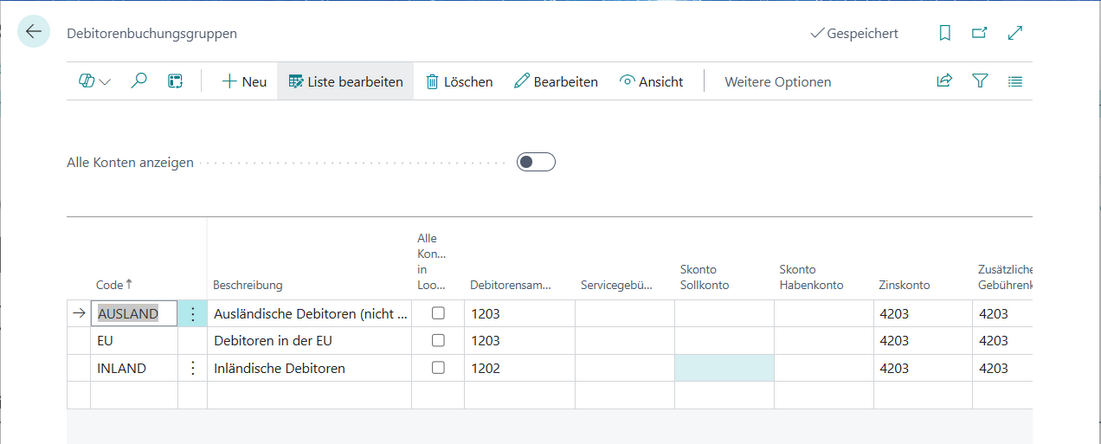
How to review collective accounts:
Open Customer Posting Groups (global search).
Check which accounts are set as the "Receivables Account" (e.g. 1202, 1203).
These accounts are automatically identified as collective accounts by the G/L account buffer and displayed accordingly in the balance sheet.
Accounts that are posted manually (not used as collective accounts) must be manually confirmed in the G/L account buffer and re-assigned to a standard balance sheet account if necessary.
Notiz
If an account in the G/L account buffer is incorrectly flagged as a collective account (because it would theoretically be one in SKR04) but you post to it manually: deactivate the collective account toggle in the account group and confirm the assignment manually.